Physical Address
304 North Cardinal St.
Dorchester Center, MA 02124
Physical Address
304 North Cardinal St.
Dorchester Center, MA 02124
Helpful ideas. Squeaky value.
Helpful ideas. Squeaky value.
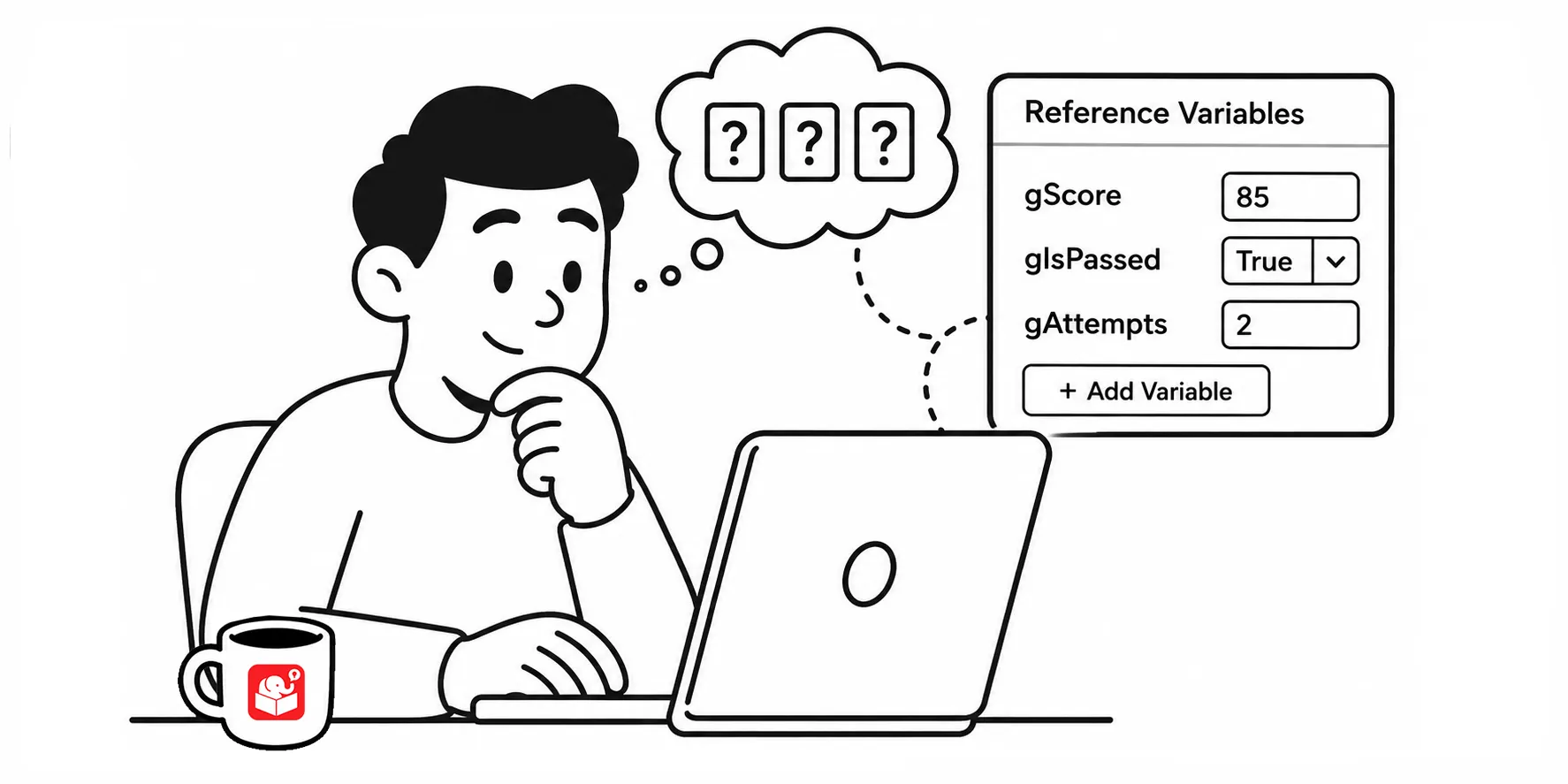
You set up a variable, add a trigger, and preview the course. The button fires. But nothing changes, and you’re not sure why.
A reference variable is a text box that displays the current value of a variable. You place it on a slide during development. When you preview the course, you can watch the value update in real time as you interact with it.
Without one, you’re guessing. You click the button and assume the variable changed because the trigger looks correct. A reference removes that assumption and shows you exactly what’s happening.
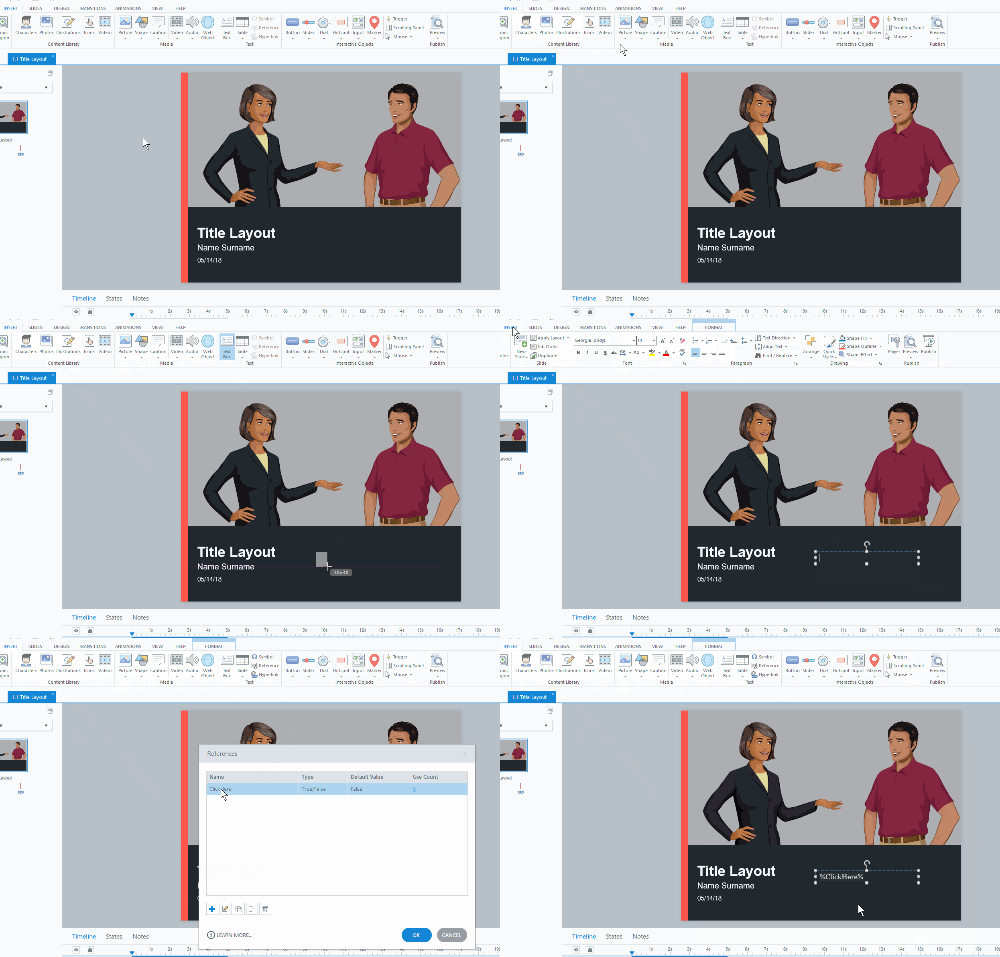
If the value updates when expected, you know the variable logic is working. If it doesn’t, you know where to dig. Either way, you’re troubleshooting with real information instead of inference.
It’s how I built this dashboard to change my variables when I review courses.
You need to remove or hide them before publishing. Here are four approaches, each with different tradeoffs:
The master slide method wins because it scales. One toggle and your reference variables are hidden everywhere in the course. When you need to debug again, one toggle brings them back.
Reference variables for testing and debuggin are a small habit that pays off across every project. As your courses get more complex with branching, scoring, and conditional logic, being able to see what’s happening in real time saves hours.