Physical Address
304 North Cardinal St.
Dorchester Center, MA 02124
Physical Address
304 North Cardinal St.
Dorchester Center, MA 02124
Helpful ideas. Squeaky value.
Helpful ideas. Squeaky value.
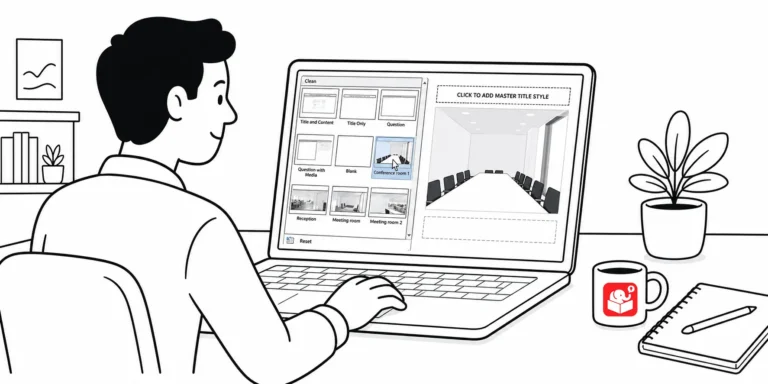
Every time you build a branched scenario in Storyline, you probably spend minutes hunting for background images. There's a better way. Two methods turn that setup into a one-time task.
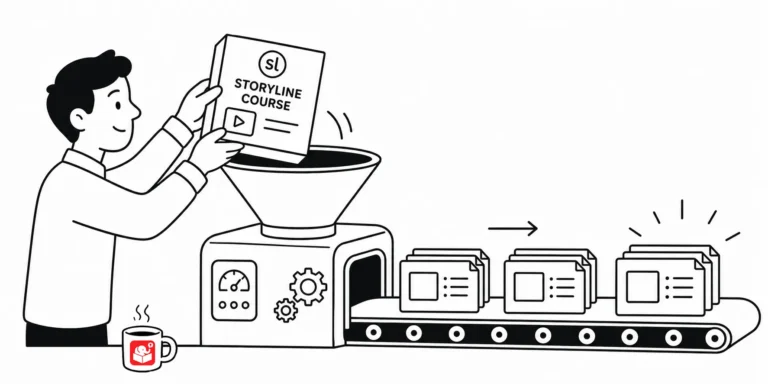
A colleague needs your Storyline course as a PowerPoint file for an upcoming presentation. There's no direct import path, but two practical approaches will get your content there. Both work without extra tools, and you can choose based on how much flexibility the presenter needs.
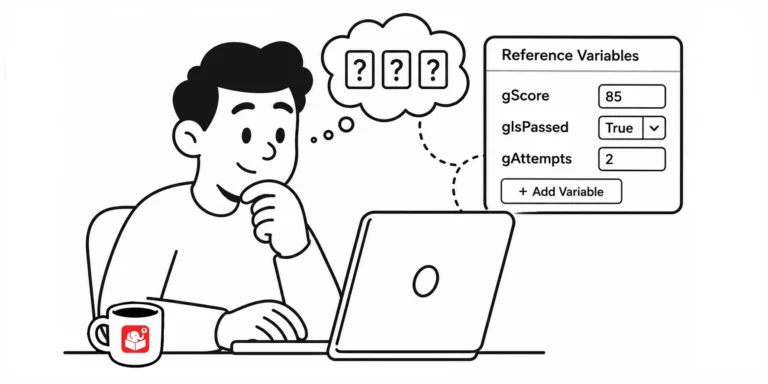
Guessing whether a variable actually changed is a bad way to build a course. Here's a simple trick for seeing variable values as you build, without leaving a mess behind when you publish.
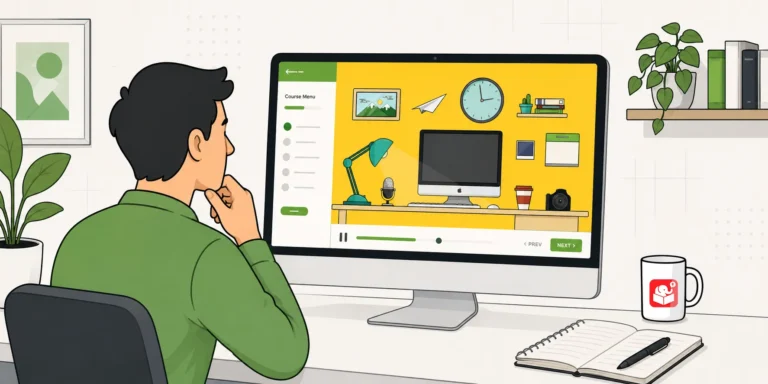
Learn how to build a zoomable, interactive course using a single image and Storyline 360's zoom region feature. This tutorial walks you through the full process with a working example and free resources.
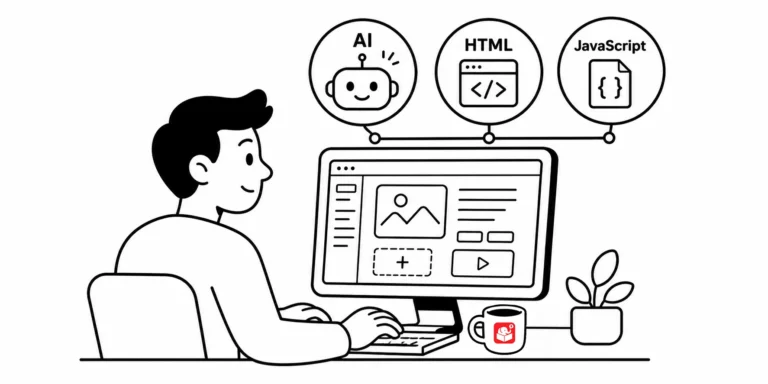
Storyline and Rise handle the heavy lifting, but a little code and AI knowledge still pays off. Learn where HTML and JavaScript solve embedding problems, and where AI now speeds up creating text, images, video, and audio for your courses. Both come down to the same thing: knowing enough to spot a problem and fix it fast.
Come back to a Storyline project after six months and you'll see immediately whether your variable naming was thoughtful or rushed. Good names are easy to read at a glance. This post lays out a practical system for getting it right the first time.
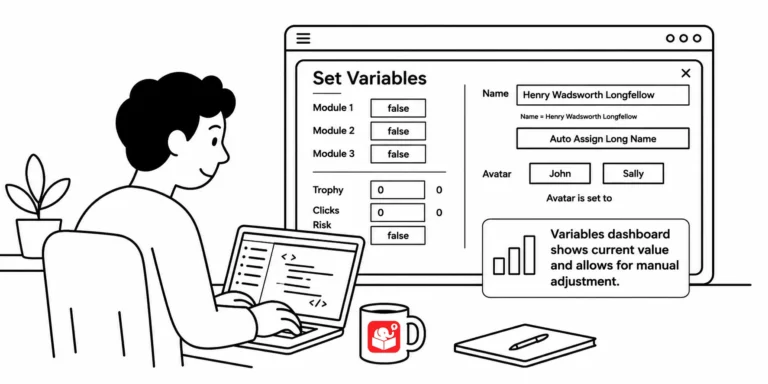
You've built a course with a dozen variables and need to test whether a specific trigger works on slide 20. That means clicking through every screen just to get there. A variables dashboard fixes that, and this post shows you how to build one.
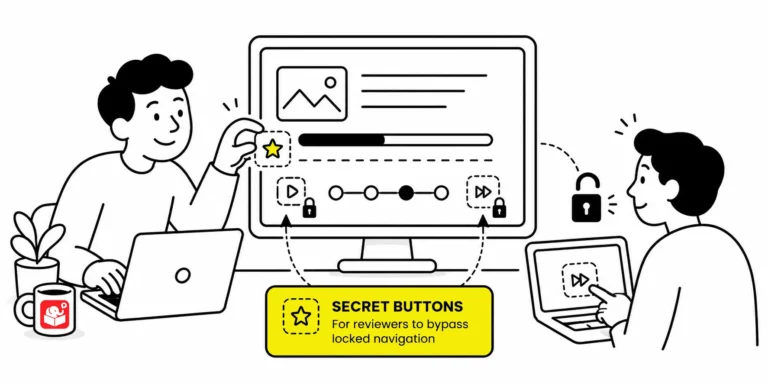
When a course locks every slide, reviewers must sit through narration and animations just to check one thing. That slows down feedback and makes troubleshooting painful. A hidden shortcut menu fixes it without affecting the published experience for learners.
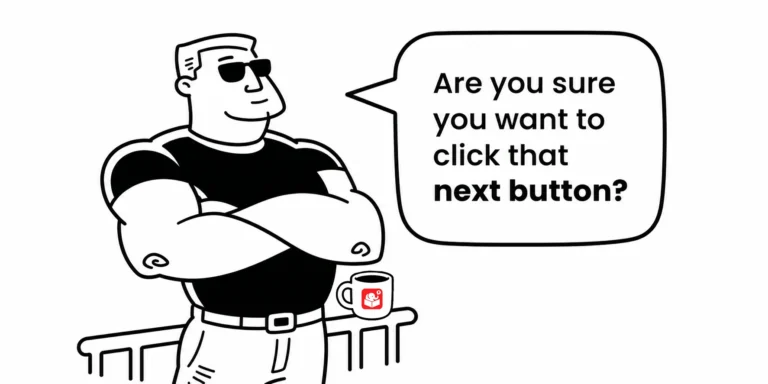
Most e-learning courses have natural pause points where learners need context before they move forward. Gate screens fill that role, and they show up in more courses than you might expect. Planning for them early makes the whole production process faster.
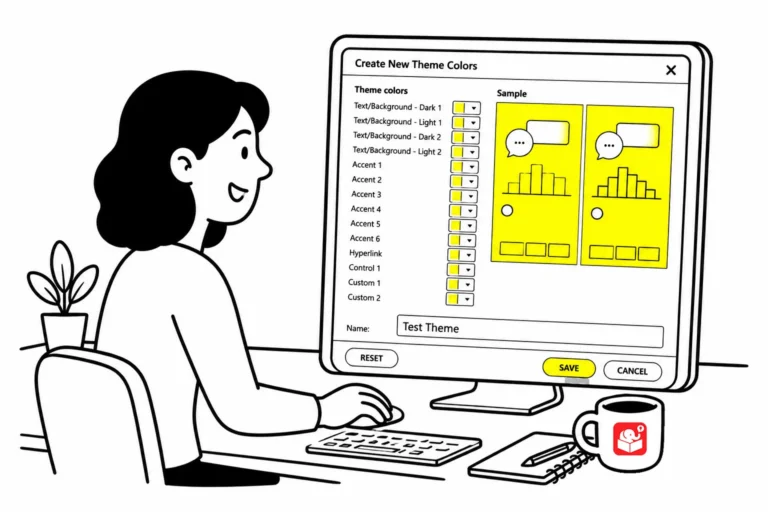
If you've ever updated a theme color and found that half your template didn't change, you've run into the custom color problem. This quick trick makes it easy to spot every object that isn't using a theme color before it becomes a real headache.
Most course authors build linear slides and stop there. Variables let you collect learner input, evaluate decisions, and send learners down different paths. They're not as complicated as they sound, and this post shows you where to begin.
A lot of drag and drop problems come from decisions that weren't made before building started. Knowing your interaction type, how you'll mark targets, and how you'll give feedback will save you a lot of rework.
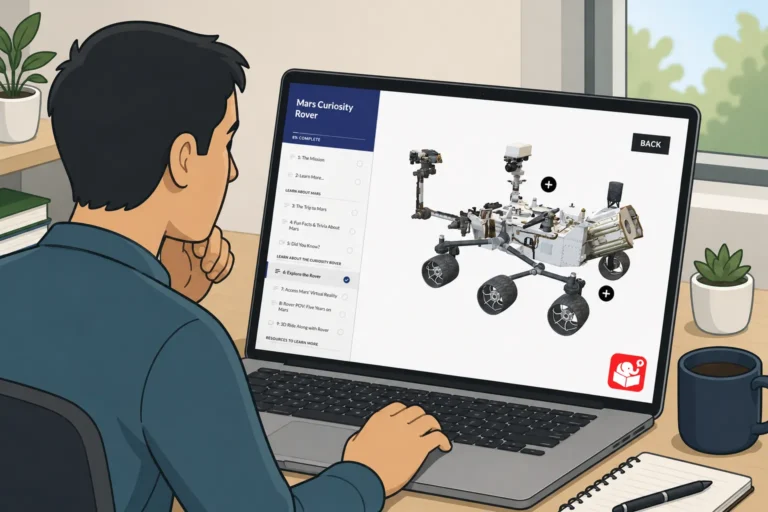
A spinning 3D object looks impressive in a slideshow. But when a learner clicks a tab and the object rotates in response, that's something worth remembering. This post picks up where the PowerPoint video tutorial left off and shows how to wire the full interaction in Storyline.
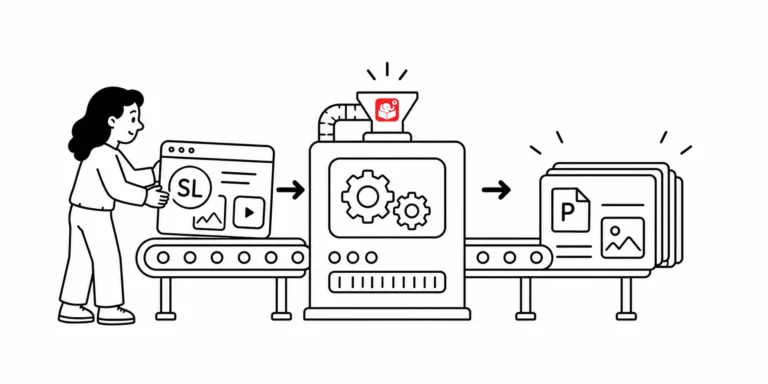
How to convet Storyline to PowerPoint? The request makes sense, but the two tools aren't built to share files. Here are two methods that actually work, depending on where you are in the project.
Interactive hotspots do more than trigger clicks. Use them as invisible buttons to speed up production, or as barriers that block interaction with what's underneath. Here are three ways to put them to work in your next course.