Physical Address
304 North Cardinal St.
Dorchester Center, MA 02124
Physical Address
304 North Cardinal St.
Dorchester Center, MA 02124
Helpful ideas. Squeaky value.
Helpful ideas. Squeaky value.
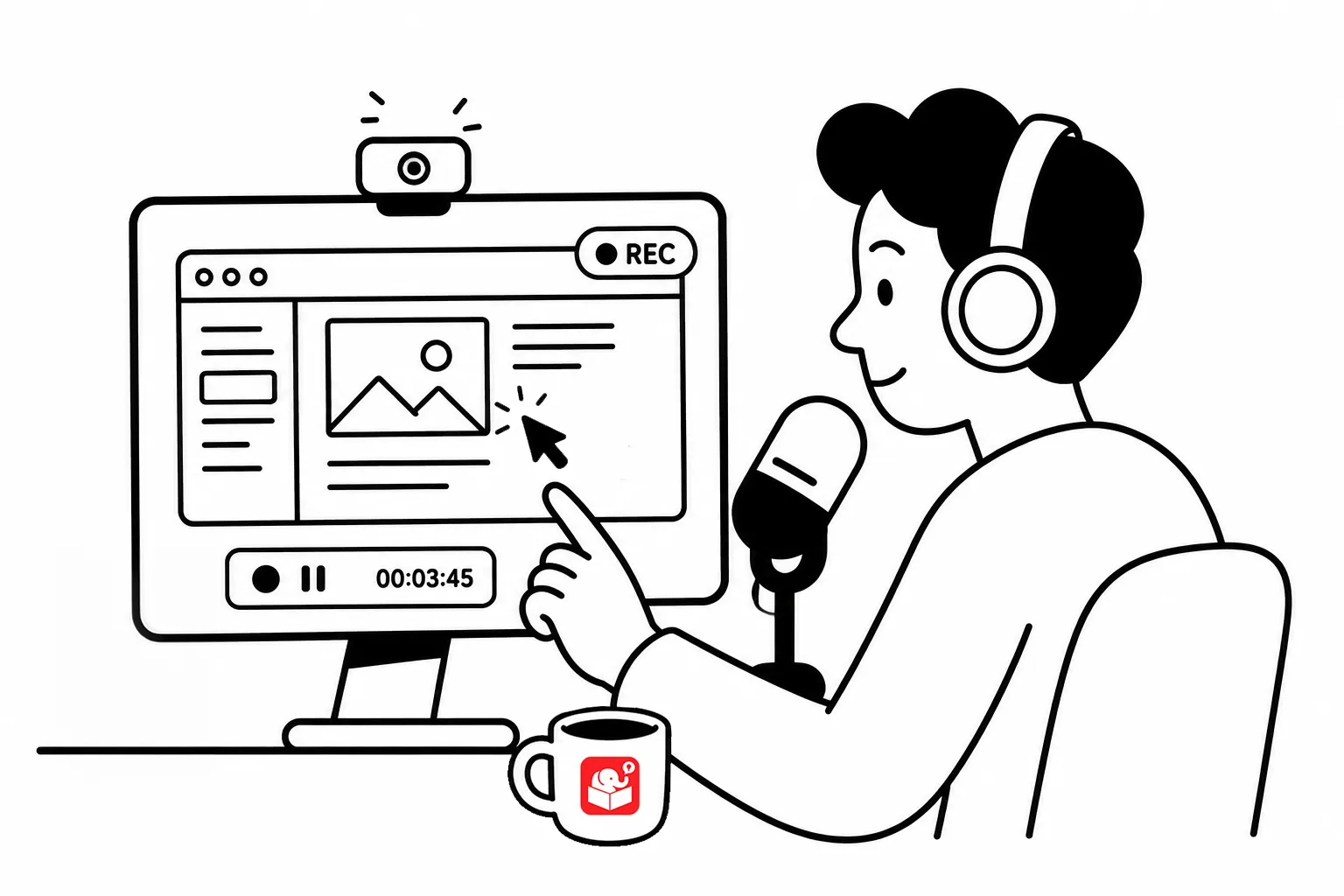
Here’s a common scenario: a learner clicks play on a software tutorial and waits. Three minutes in, the instructor is still explaining the interface they haven’t seen yet. By the time actual instruction starts, most learners have tuned out.
I am guilty of this myself. I’ll record a “quick” tutorial a realize I spend way too long on the intro. Here are some tips that may help.
Learners want to know two things right away:
A quick framing sentence at the start does more for engagement than any amount of production polish. Tell them upfront what outcome they’ll walk away with, then get into instruction as fast as possible.
If your intro runs longer than 30 seconds (speaking to myself here) it’s probably too long. People came to learn a specific thing, and they want to get there.
Here’s a simple test: if you removed the first 60 seconds of your video, would anything important be lost? If not, cut it.
Walking through every menu and setting feels thorough, but learners don’t need a tour of everything the software can do.
Focus on the features they’ll actually use for that specific task. Skip anything that isn’t tied to a real task. You can always push them to additional resources to learn more if they want.
Think about what people need to do, not what the software can do.
Make a list of the real tasks learners perform in their jobs. Build each screencast around one of those tasks.
Frame a real task first. For example: “You need to create a monthly report from this data.” Then teach only the features that matter for completing that task.
One activity after one screencast isn’t enough. People need repetition to build fluency, especially with software.
When you introduce a new skill, include an activity that also reinforces the previous one. That way each session builds on the last.
Short videos are easier to watch, easier to update, and easier to return to when you need them. A single long video forces learners to scrub through it looking for the part they need.
Aim to cover one objective per video, and keep it as tight as you can. If you have a lot to cover, break it into a series.
Short, focused videos can’t cover everything, and they shouldn’t try. Keep a list of additional resources and link to them at the end of each video.
Learners who want to go deeper will appreciate having somewhere to turn.
Video takes time to produce and time to update when the software changes. For content that’s still in flux, annotated screenshots are often a better choice.
They’re faster to make, easier to update, and perfectly clear for simple tasks.
Here are some resources from the community that may help:
Making better screencasts is really about making better training decisions. When you design around learner tasks instead of software features, your videos get shorter, sharper, and more reusable. Pick one tip from this list, apply it to your next project, and see what changes.