Physical Address
304 North Cardinal St.
Dorchester Center, MA 02124
Physical Address
304 North Cardinal St.
Dorchester Center, MA 02124
Helpful ideas. Squeaky value.
Helpful ideas. Squeaky value.
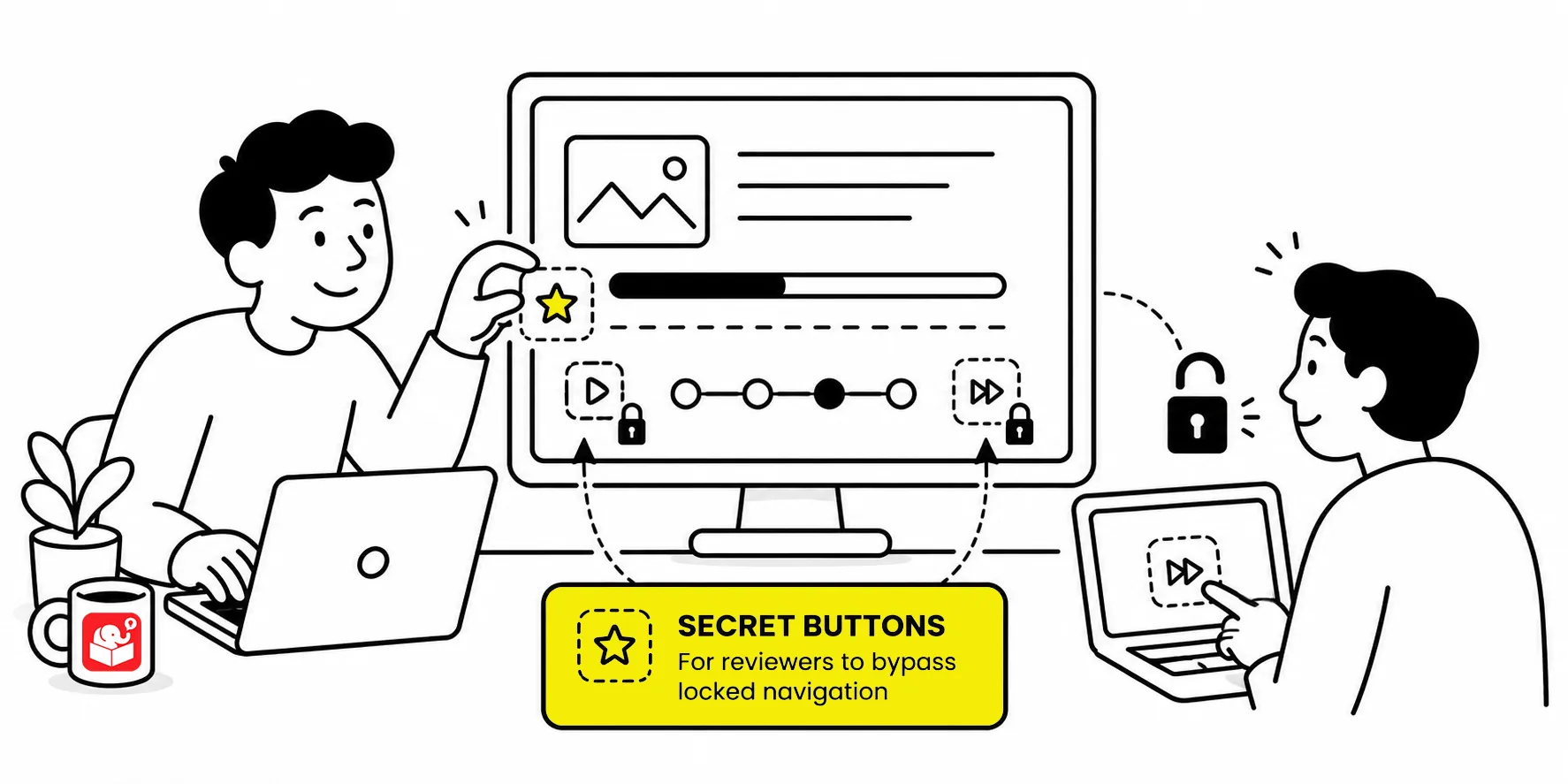
I run into this all the time. Someone in the community asks me to review a course. I click the first slide, wait for the animation, sit through the long narration, and then try to click ahead. Navigation is locked. Ugh!
I can tell you now, if someone sends me a course like that, all I am viewing is the first slide and then I’m out of there.
If you need someone to review a course, give them some options. One is to move through the course without being locked down. Another that follows that, if I need variables to be at a certain value
The fix is a hidden navigation button or menu that gives you fast access to any slide in Storyline. The first option is a button placed on the slide itself, often tucked into a corner. The second is a custom player tab that stays visible no matter which slide is active. Both approaches work, and which one you choose depends on how your slide layouts are set up.
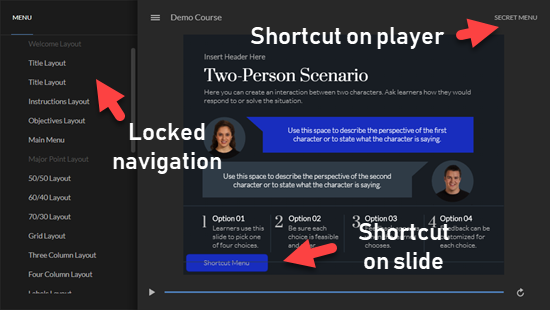
A hidden shortcut menu can do more than navigate slides. A similar approach works for testing variables. Create a dashboard to adjust Storyline variables.
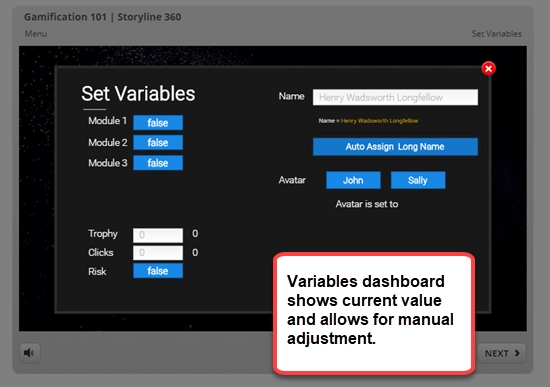
Building a shortcut menu into every course is a habit that pays off the first time a reviewer needs it. As courses grow more complex, jumping to a specific scene or testing a variable in seconds becomes more valuable. The technique also makes it easier to ask for and act on feedback. Reviewers who can navigate freely give better notes. How do you handle navigation shortcuts in your courses, and is there a method that’s worked well for you?