Physical Address
304 North Cardinal St.
Dorchester Center, MA 02124
Physical Address
304 North Cardinal St.
Dorchester Center, MA 02124
Helpful ideas. Squeaky value.
Helpful ideas. Squeaky value.
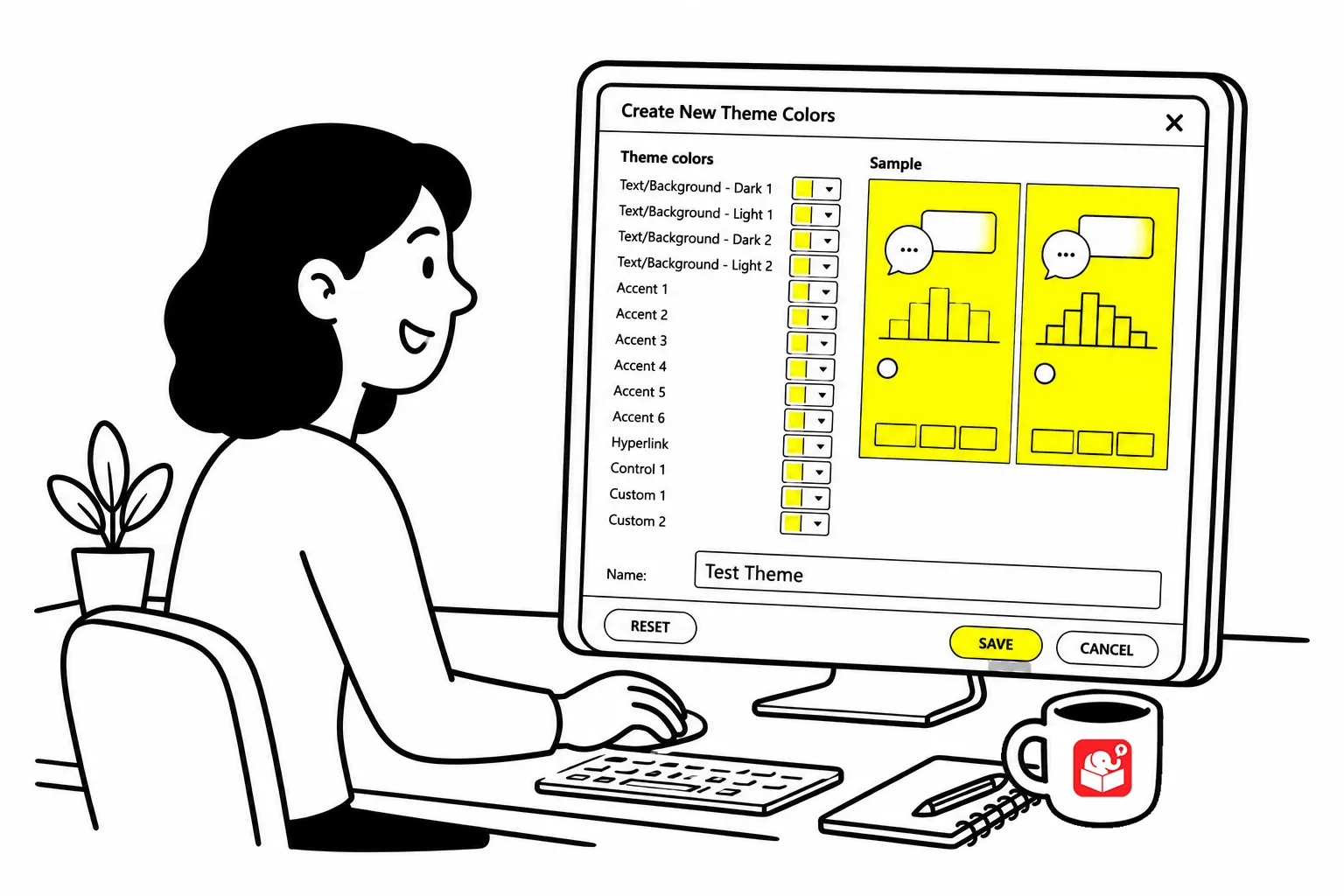
Each course template is made up of theme fonts and theme colors. Theme fonts and colors are an easy way to manage and update course files.
Here’s a common issue: instead of using theme colors many developers do quick color picks or custom colors. This is fine until you need to make a change to the slide and the colors aren’t updating when you change the theme color.
It’s hard to know where the theme colors are used on a slide. Here’s a simple technique to check the theme colors and make sure that they’re used throughout the various template slides.
Our template developers use this technique to verify that every element in a template is wired to the theme. Here’s how it works:
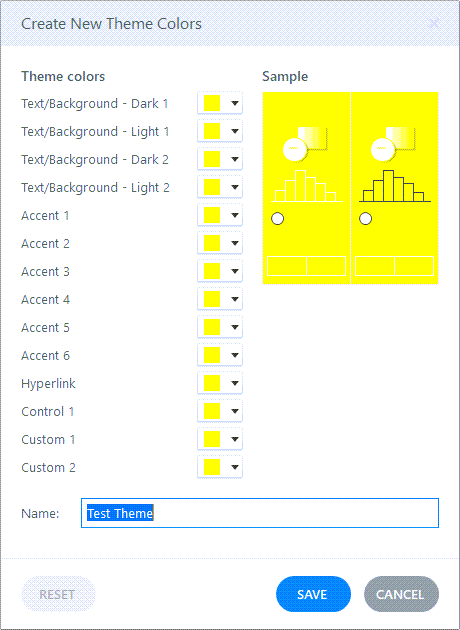
When you apply the yellow theme, everything using a theme color turns yellow. Whatever stays its original color is using a custom value instead. Those are the objects to fix.
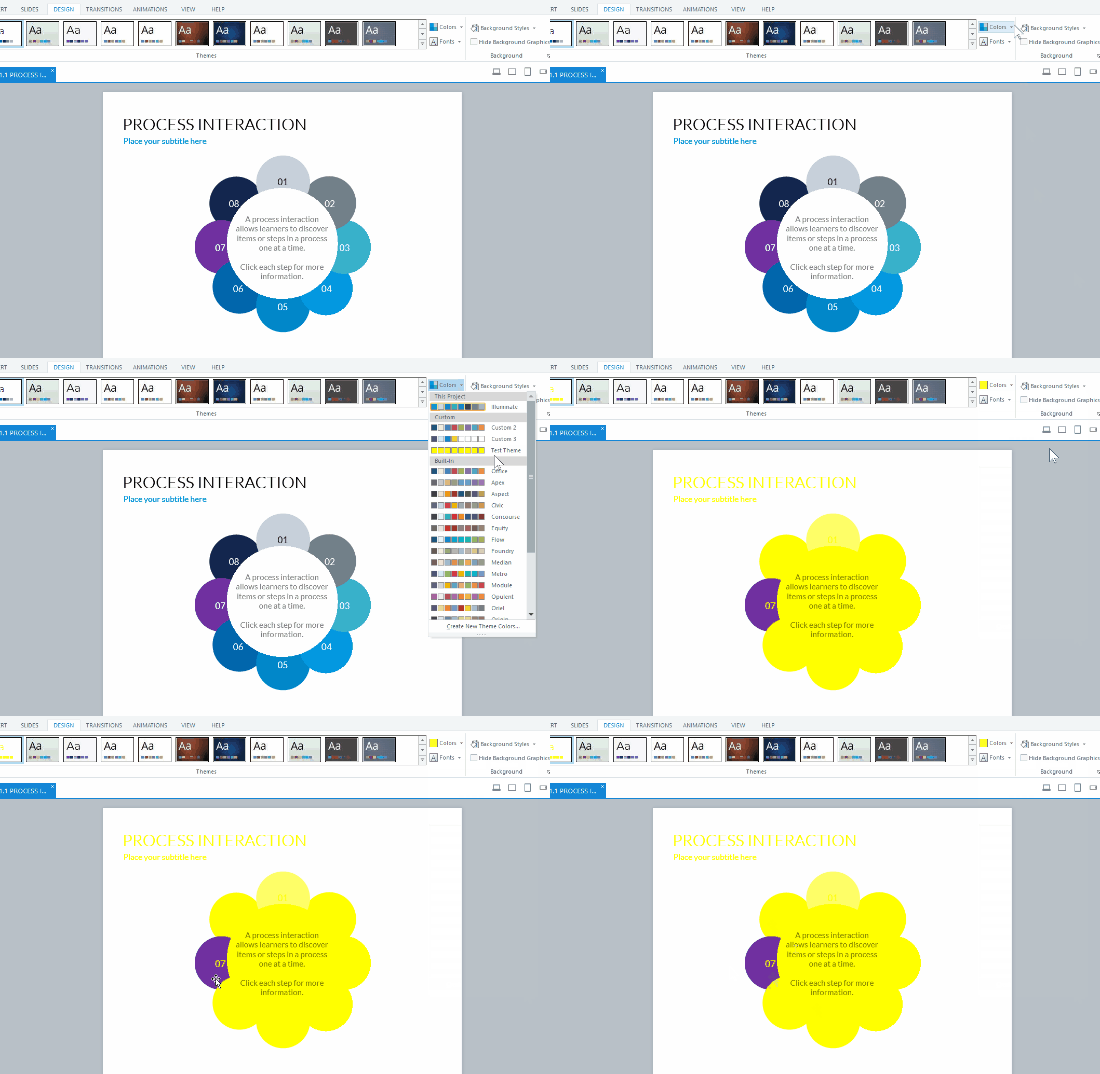
Once you’ve identified the non-theme objects, go in and reassign their colors using the correct theme color slot. Then reapply your actual color theme. Everything should update correctly.
The whole process takes about two minutes. Run it on any template before you share it with your team or use it as the starting point for new courses. Finding a stray custom color early is much easier than tracking it down after thirty slides of work.
Make the yellow test part of your regular template review. Before you share a template or use one from the Content Library in a new project, run it through the test. It takes two minutes and keeps your color systems working exactly the way they should. How many of your current templates would pass it?