Physical Address
304 North Cardinal St.
Dorchester Center, MA 02124
Physical Address
304 North Cardinal St.
Dorchester Center, MA 02124
Helpful ideas. Squeaky value.
Helpful ideas. Squeaky value.
This is a guest post from Elizabeth Kuhlmann.
Every week I had another Zoom presentation on the calendar and another slide deck to build. The slide deck worked fine, but at some point I switched to Rise since it was a tool I was using everyday and it added capabilities I hadn’t expected.
Like many of you, we have a ton of zoom meetings and often I’m tasked with presenting information or training sessions. My initial inclination was to build something in PowerPoint or Google slides, but I switched to Rise and haven’t looked back.
I find that even though Rise is designed to be more of a traditional e-learning course authoring tool, it really does lend itself as a great presentation tool.
Let me tell you how I am using it and why.
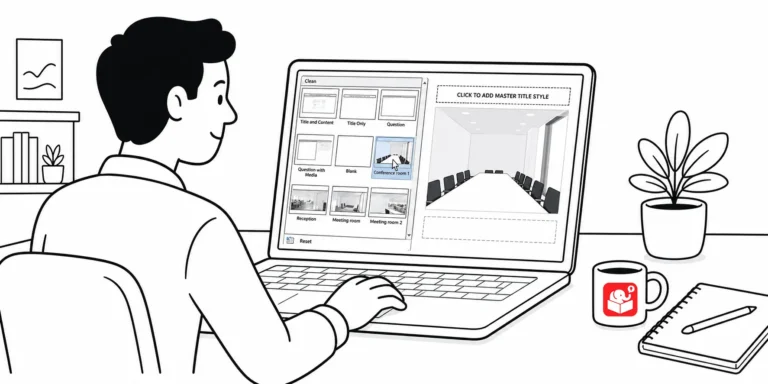
With Rise, I spend less time constructing the layout because I’m not starting with an empty slide. However, I can still make something that’s visually appealing, chunked into distinct sections, and still control what’s on the screen and when.
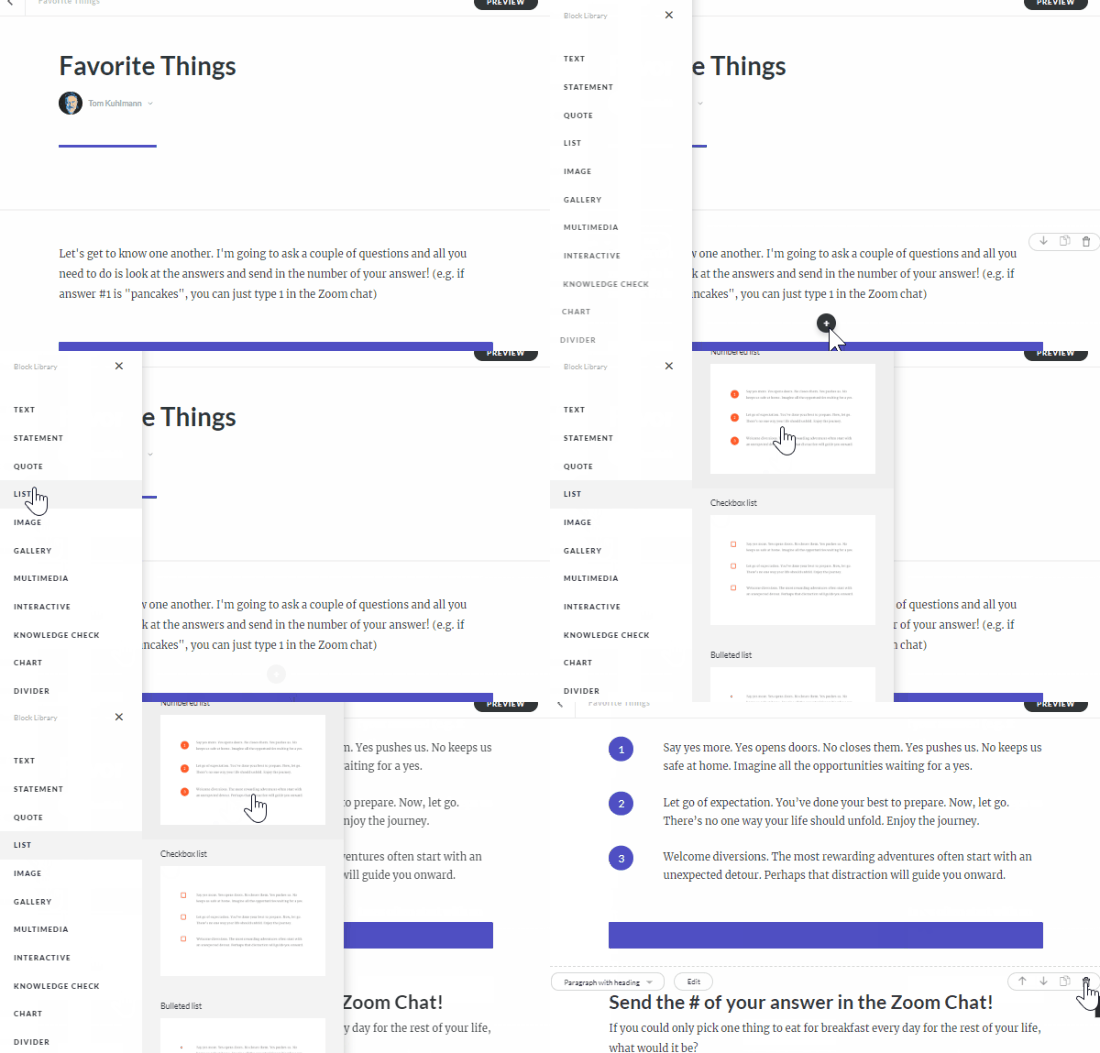
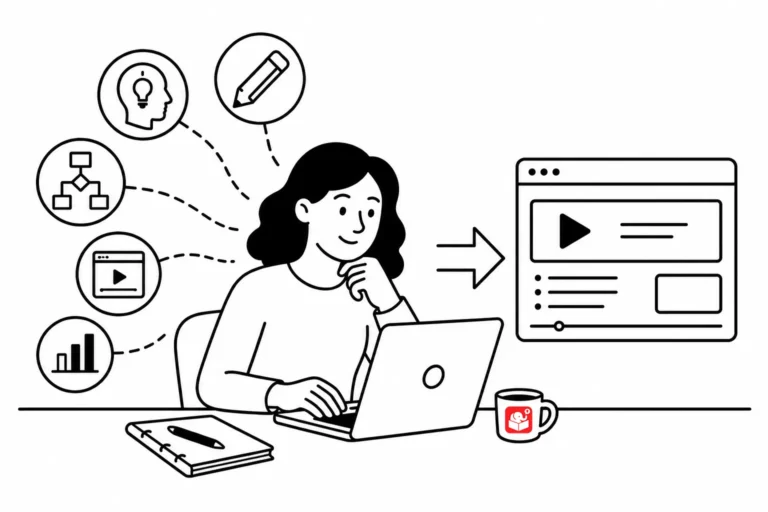
In the example above you can see how easy it is to add all sorts of presentation content such as text, media, and interactivity.
I like to use to use the Continue Divider block to chunk the content similar to how I may have it in a slide deck. And then to advance my presentation, I click the divider to reveal more.
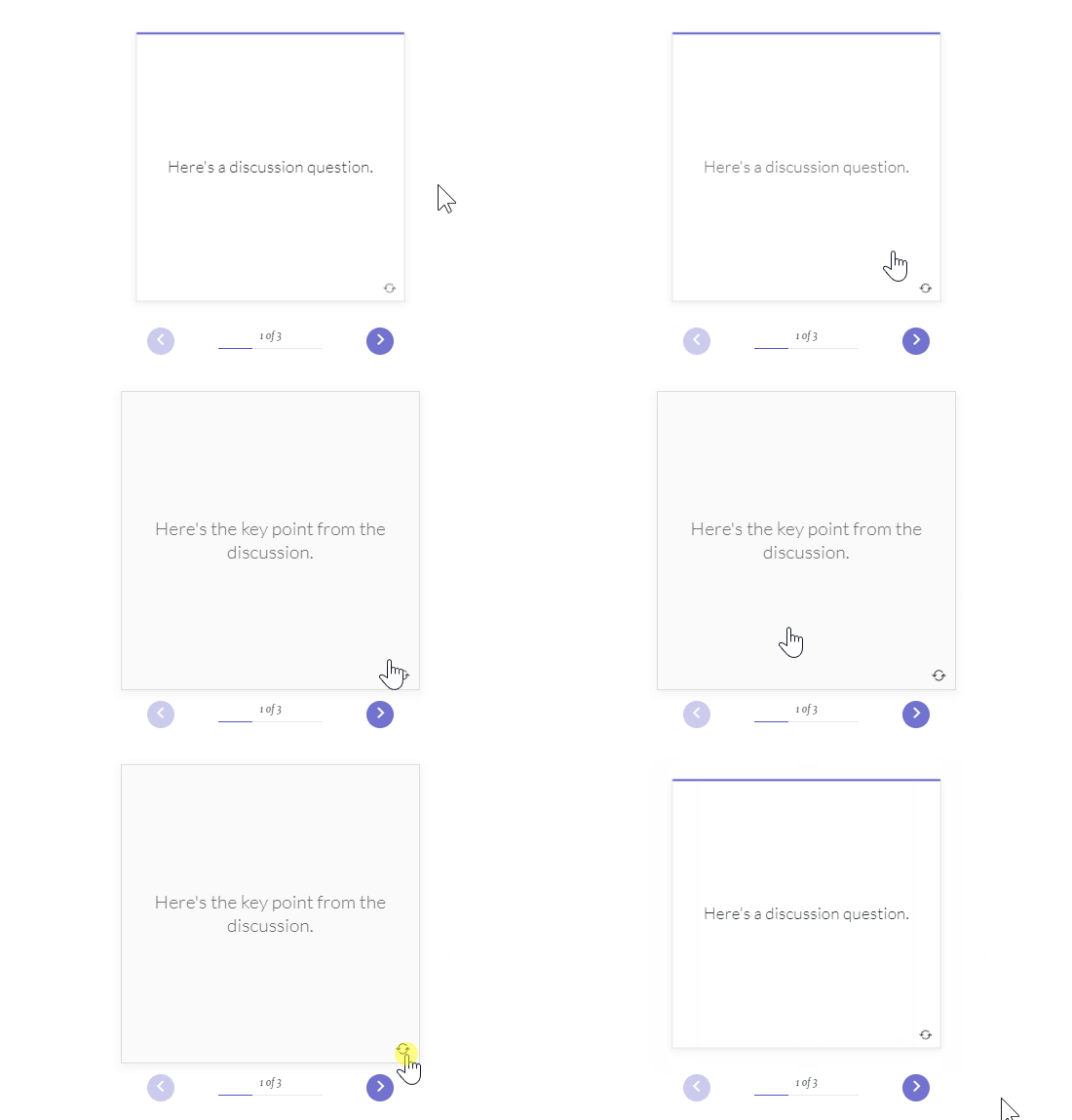
Also, I will convert what should have been bullet points to simple interactions like the the accordion or tabs. This allows me to keep people focused on what we’re discussing. The flashcard block is a great way to talk through things, ask a question, and then reveal content when clicked.
Embedding content from other sources can make the live presentation more engaging or add extra capability. For example, often in our conversations, I present a timed activity.
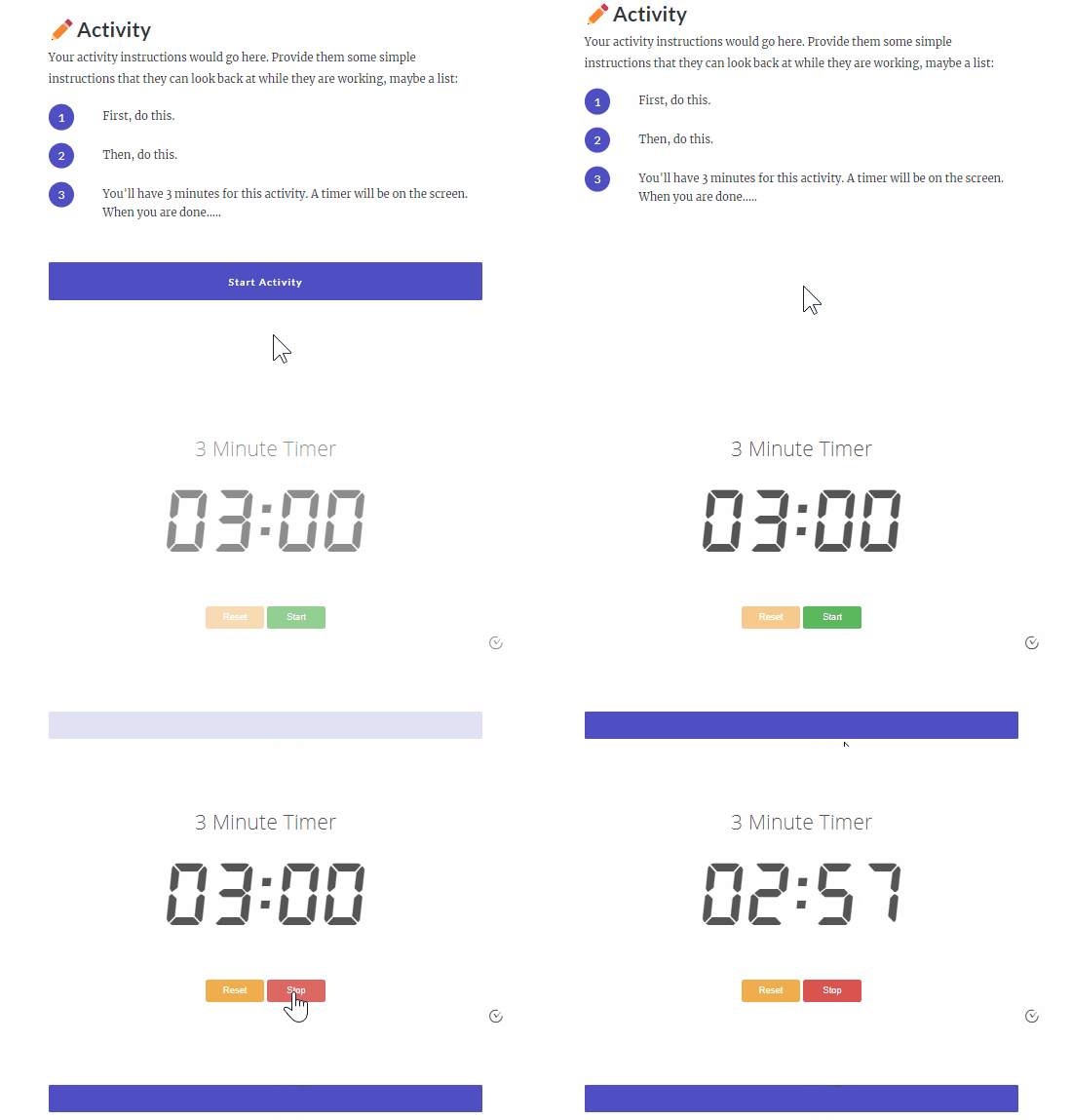
This is where I use the embed block in Rise and add a timer from vclock using their embed code. You can also embed maps and all sorts of extra media using that block. Basically, if you can find it online you can add it to your presentation.
Often during the presentations I find the attendees already have a good grasp of the information. In those cases I like to skip to something else. That’s where the sidebar menu comes in handy where I can jump to specific content that I’ve chunked into lessons.
Keeping the sidebar visible is a great way to let the people know where we’re at and where we’re going. So sometimes I keep it open. But it’s easy enough to collapse the sidebar and only show it when I have to.
One of my favorite things is that I can just share the presentation as is. I don’t need to save a PDF of slides or email them a copy of my PPT presentation.
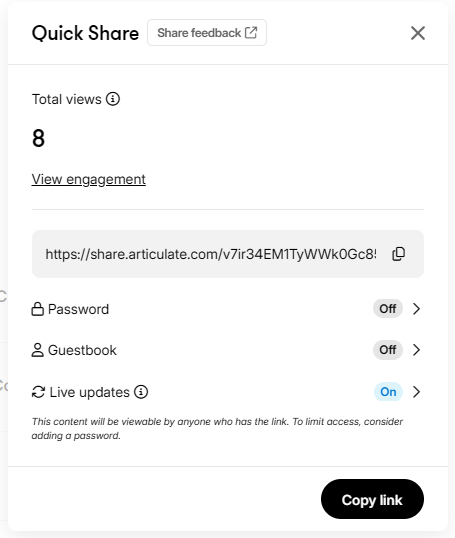
I publish the Rise presentation to Review if I want to leverage the comments. Otherwise I use the Quick Share feature and then provide the group with the link.
An added benefit to using Review is that since the Rise presentation is published to Review the attendees can leave comments. This is really great if we run out of time during an activity or discussion. We can continue to conversation in the published presentation.
I can always make updates to the presentation and then republish the new Rise presentation over the old version knowing that everyone will have the same updated content. This is really important for things like sales training and presentations where the content is updated and changes often. And this works even better with the quick share option in Rise if you want to use that instead of Review.
I recorded a quick video to show how I use Rise as a presentation tool. Check it out.
Rise as a presentation tool is worth trying if you’re already using it for course development. The same skills transfer directly, and the output works harder than a slide deck. If your organization runs frequent training sessions over video call, try building your next one in Rise. Sharing it via Review or Quick Share afterward could change how your team thinks about live training.