Physical Address
304 North Cardinal St.
Dorchester Center, MA 02124
Physical Address
304 North Cardinal St.
Dorchester Center, MA 02124
Helpful ideas. Squeaky value.
Helpful ideas. Squeaky value.
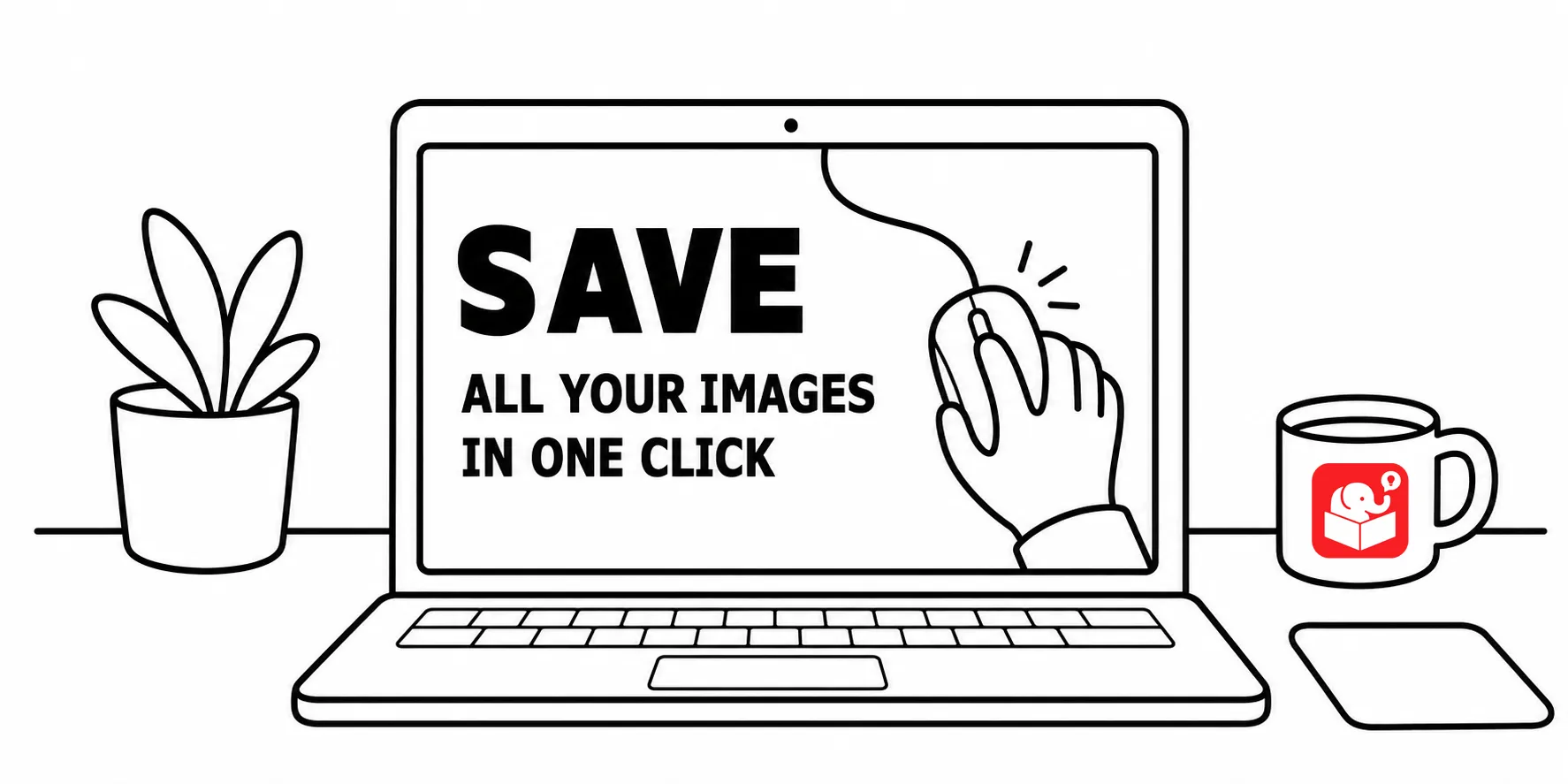
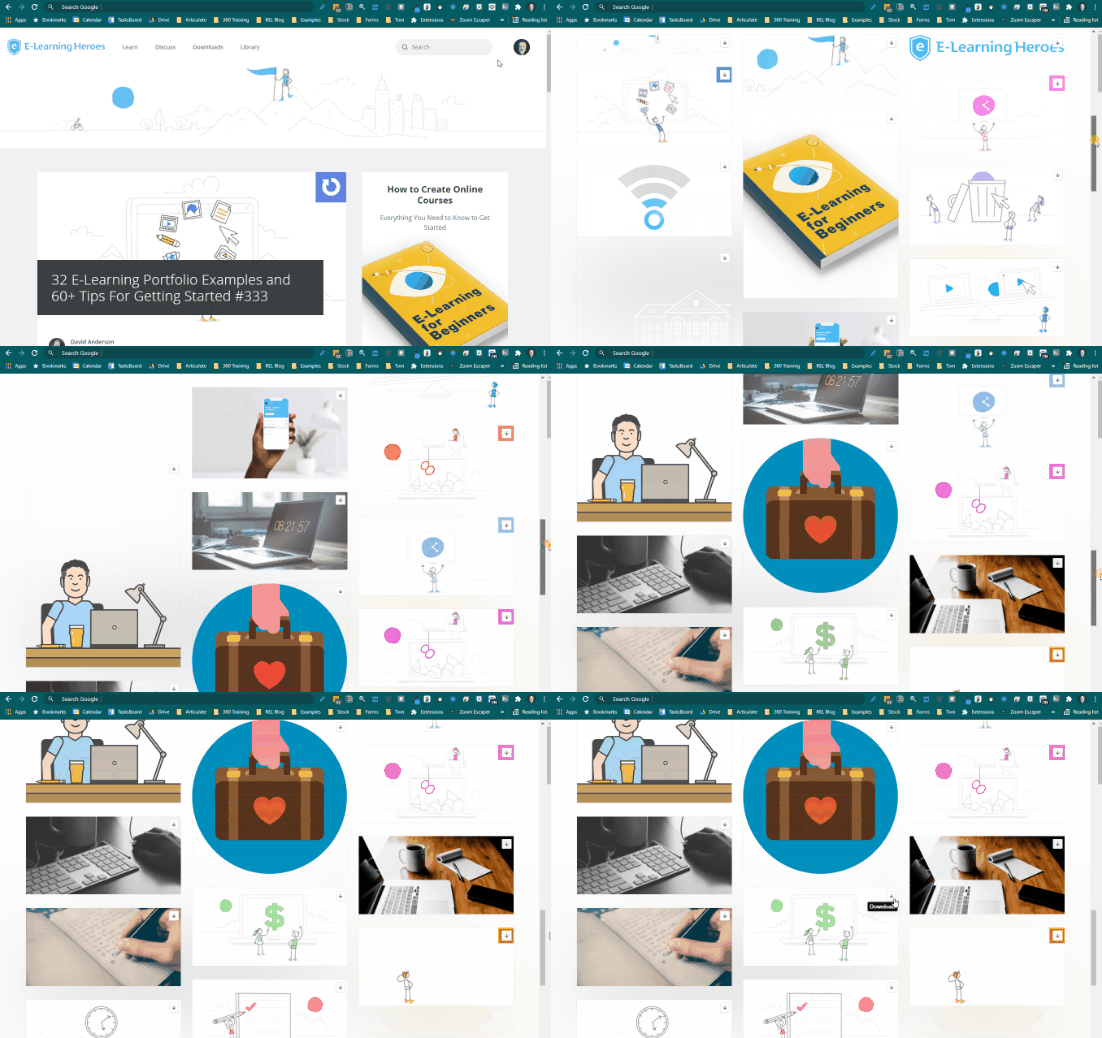
When I create presentations for our webinars or workshops, I like to use the imagery from the e-learning community or the Articulate website. They’re on-brand and with the illustrations, we have a lot from which to choose. When I created training at previous organizations, I did something similar.
Usually when I find an image, I right-click to save. However, this is a bit tedious
Right-clicking images one at a time works but it’s slow. Both tools below are free and require no technical setup. You can have every image from a page in front of you within seconds.
The image extractor extensions lives in your browser toolbar. Visit any page on your site and click the extension. It shows every image on the page, and you download what you need. This works well.
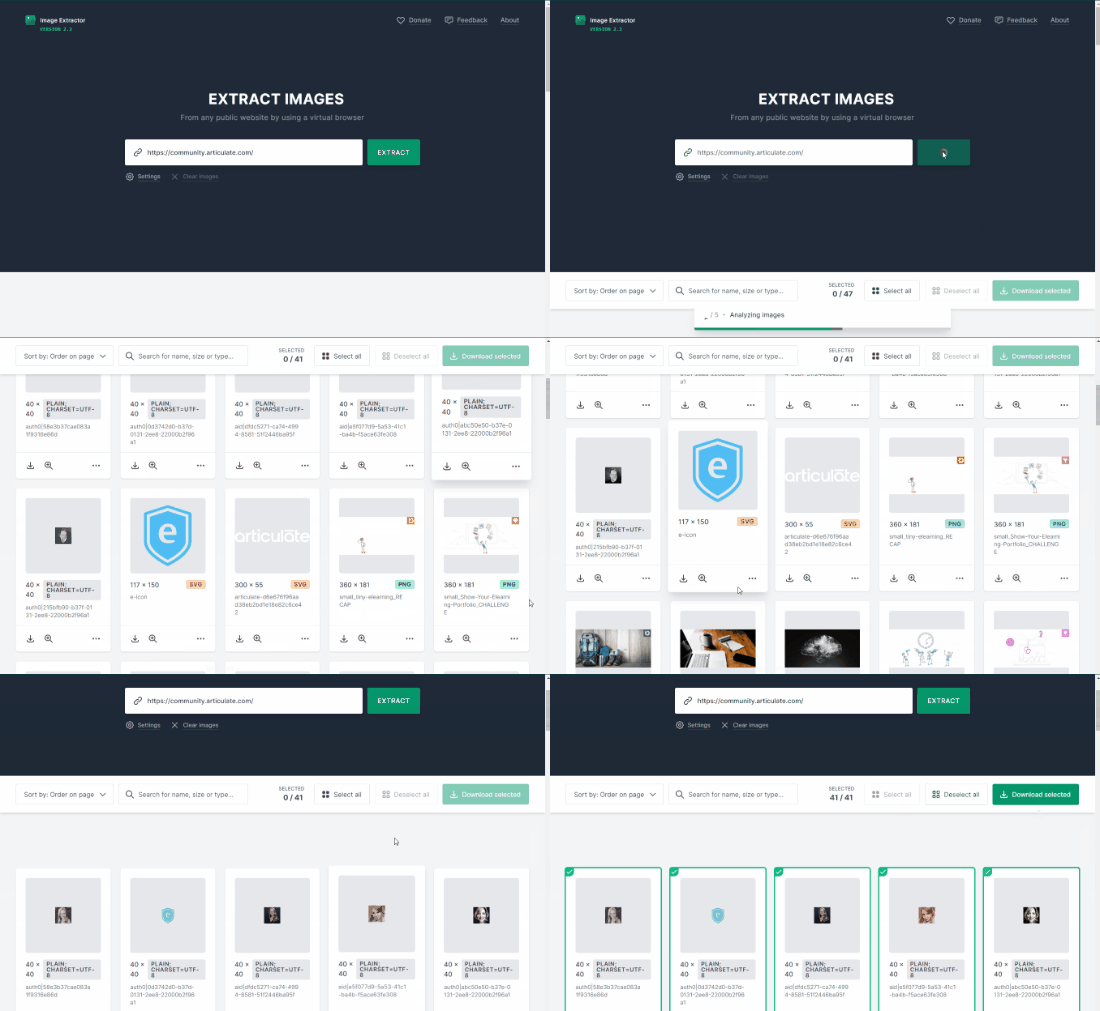
The Image Extractor site at extract.pics works without installing anything. Paste a URL and it opens the page on its servers. It filters out tracking and decorative images, shows you what’s useful, and lets you download in batches.
A quick note before you start. Both tools are intended for sites where you already have rights to the images. Using them on external sites raises copyright questions worth thinking through first.
Build a running folder of on-brand images you can pull from whenever a project kicks off. These tools make it easy to fill that folder from any page on your site. The next time you’re browsing your company site, try extracting a few pages and see what you find.