Physical Address
304 North Cardinal St.
Dorchester Center, MA 02124
Physical Address
304 North Cardinal St.
Dorchester Center, MA 02124
Helpful ideas. Squeaky value.
Helpful ideas. Squeaky value.
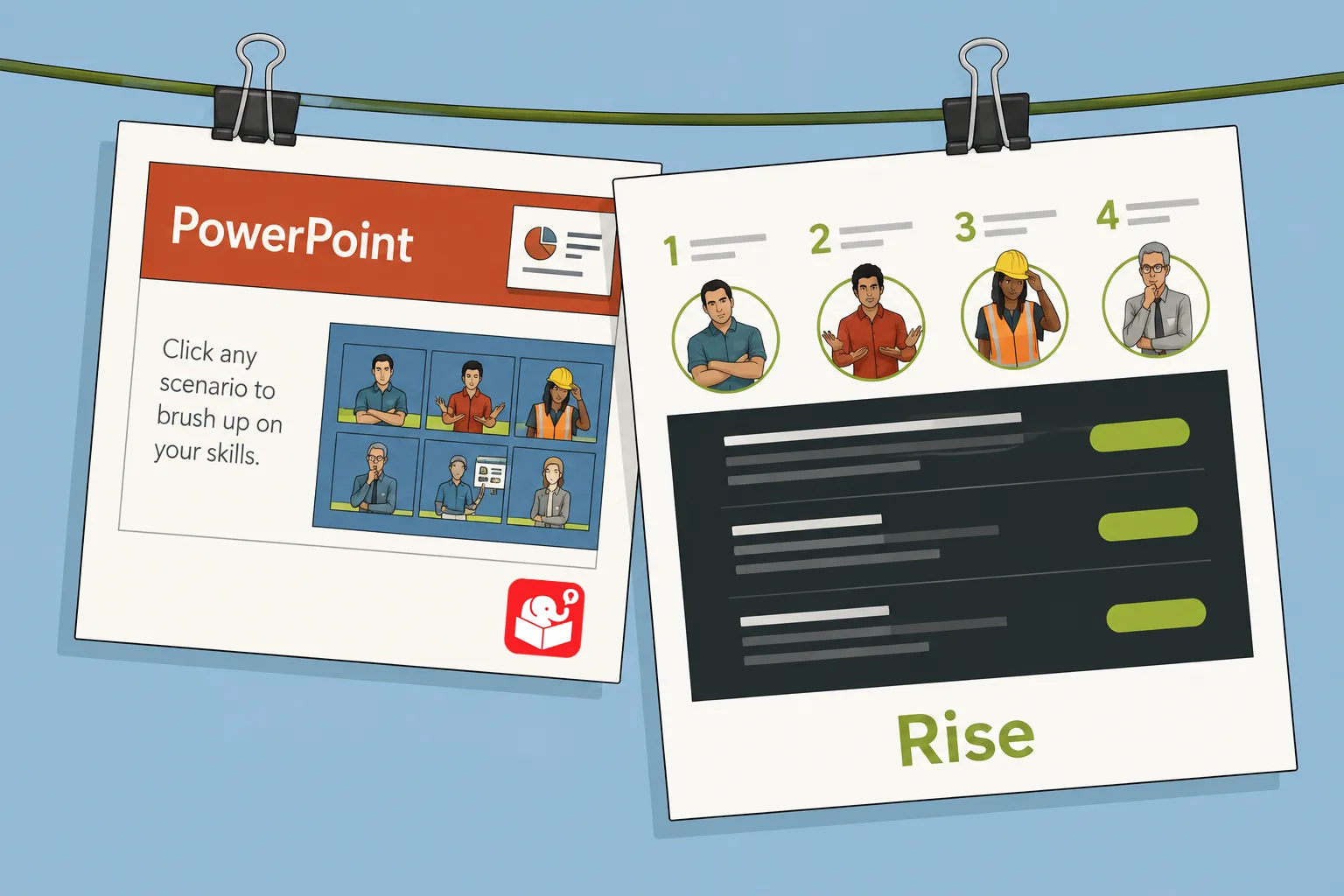
Not long ago, I found an older interactive scenario built in PowerPoint. I wanted to see what it would take to rebuild the same thing in Rise. This kind of conversion is something many course developers run into when updating legacy content. It doesn’t need to be an interaction that is converted to Rise it could also be a PowerPoint presentation.
The original scenario was a solid example of what PowerPoint can do when used creatively. PowerPoint is a linear presentation tool by design. With some imagination, you can wire up interactive content using hyperlinks and layered slides.
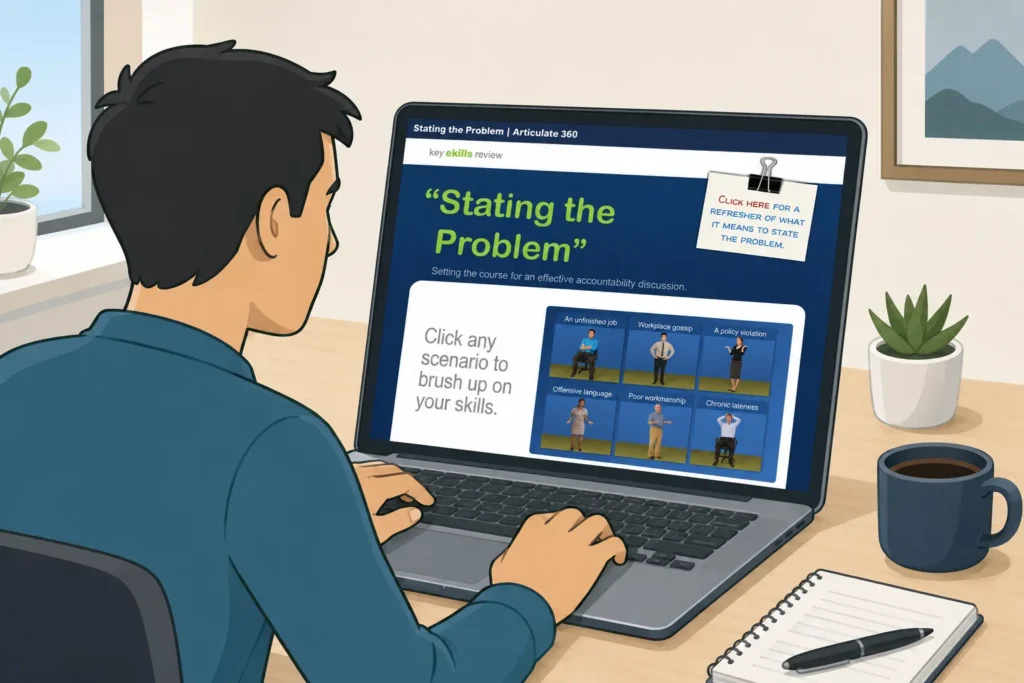
View the original PowerPoint course,
That approach has real trade-offs. Add interactive capabilities and the slide count climbs fast. The file becomes a tangle of links and hidden slides, and it’s not easy to edit or update.
PowerPoint gives you a blank canvas where you can place objects anywhere. Rise works differently. It’s form-based, meaning you assemble predefined content blocks and the tool handles the layout.
That constraint is an advantage for mobile because Rise is fully responsive. The trade-off is freeform placement. But for interactive scenarios that need to work on any screen size, Rise is the right tool for the job.
Three questions guided this conversion: How long would it take to move content over? What are the key production constraints? And how do you work around them?
Before touching the tool, decide how you want the interaction to work. I follow a 3C model: challenge, choice, and consequence. Every clickable element should map to one of those three things.
For this scenario, I used the Flashcards block to present choices and consequences. The learner sees a challenge, clicks a card, and gets feedback. Because I’m not grading the interaction, I kept all cards available so learners can see the feedback for any choice. That gives them more control over the experience.

See the interactive scenario in Rise.
Branching is possible in Rise, but it takes planning. These are the approaches that made it work.
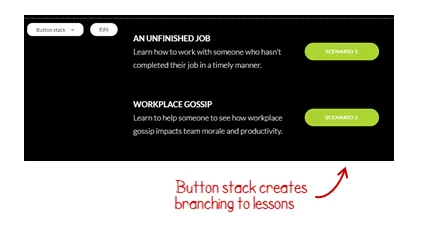
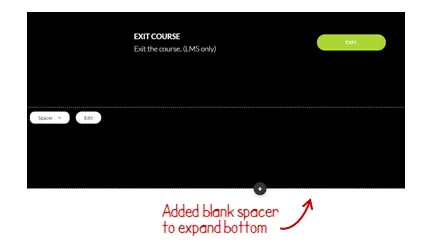
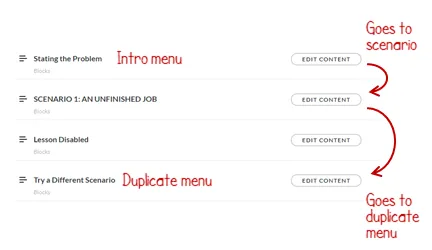
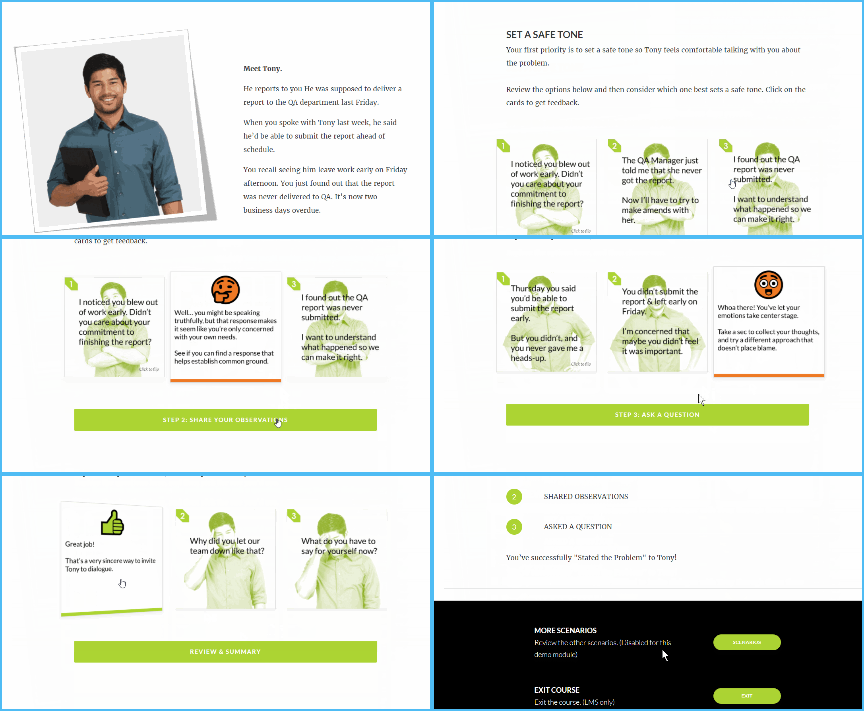
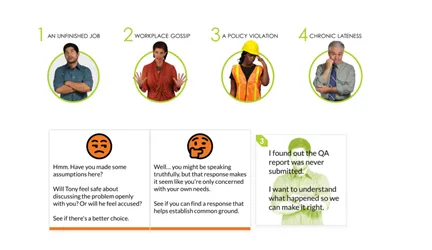
With a clear interaction plan in hand, copying the content from PowerPoint to Rise took about 15 minutes. Building the images took additional time, as did experimenting with different approaches. Total build time was about 2 hours.
The real payoff is reuse. Once an interactive lesson is built, you can save it as a template and duplicate it for future modules. Adding a new scenario branch in Rise means duplicating a single lesson. Doing the same thing in PowerPoint would mean building another 20-plus slides.
Rise makes interactive scenario content easier to maintain and far better on mobile than PowerPoint. Look at your own library and identify which PowerPoint-based content is most overdue for a rebuild. Start small, build one reusable lesson template, and see how fast the next conversion goes. What older content in your library would benefit most from this kind of update?